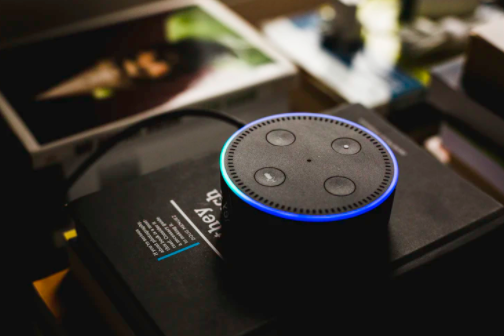
How to Turn Off Sidewalk on Amazon – Amazon has fully released its new feature, Sidewalk, and has also switched the button on it. What this does is extend the internet connection between Amazon devices like Echo speakers and Ring cameras.
On the good side, the low-bandwidth network sharing feature would make your Amazon devices function more effectively, help find lost Amazon devices and also help reconnect an Amazon device that lost its connection to the internet. Consequently, the network gets stronger with the number of devices connected to the Sidewalk feature.
Privacy and Security Issues
Amazon made sure to talk about the security fears with the Sidewalk feature stating that the company is committed to the privacy and security of its users although the Sidewalk feature is a default one. Due to the feature’s massive layers of encryption, it doesn’t appear to endanger your personal data to snoop at least for now.
Nevertheless, not everyone is great at the idea of sharing an Amazon device-based network with their neighbours or a total stranger at the park with an echo speaker.
Turn Off Sidewalk in Amazon
Amazon informed the public that customers who purchase an echo device for the first time will get the chance to turn off the Sidewalk feature on the newly purchased device during the set-up process.
- For Echo devices; open the Alexa mobile app and hit the “More” button. Then select “Settings” > “Account Settings” > “Amazon Sidewalk” and choose “Disable”.
- For Ring owners, navigate to the “Control Center” either via the ring app or website. Next, select “Amazon Sidewalk” and choose “Disable”, then confirm your choice.
More Tech Topic
Windows 10 Tips & Tricks – 10 Rare Tips and Tricks In Windows 10
How to Enter and Exit Android Safe Mode