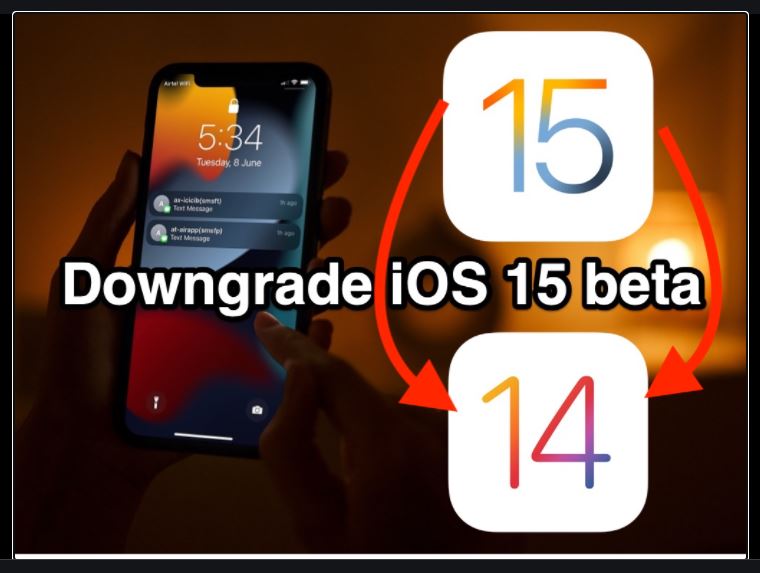
Charmed by the plethora of all-new features, you downloaded the iOS 15 beta on your iPhone to take the pre-release software for a test drive. However, days after installing the beta, you desperately want to downgrade from iOS 15 beta to iOS 14 due to a series of unexpected issues and bugs that have proved to be a nightmare.
Fret not, there is a pretty reliable way to downgrade from iOS 15 and go back to iOS 14. And that’s what I’m going to guide you through in this post.
How to Downgrade from iOS 15 Beta to iOS 14 (2021)
Downgrading from an iOS beta software update to an old iOS version is a tedious affair. Besides, it also comes with some painful caveats that you need to keep in mind before moving forward with the process. Moreover, this process will also work if you want to downgrade from iPadOS 15 beta to iPadOS 14. So without further ado, let’s check out the steps.
Things to Keep in Mind Before Downgrading iOS Beta Software Update
- Be warned that if you have already installed watchOS 8 beta on your Apple Watch paired with your iPhone running iOS 15 beta, you will not be able to use your smartwatch after the downgrade.
- You can’t restore from a backup done on iOS 15 when going back to iOS 14.
- You will only be able to restore from a previous iOS 14 backup. So, ensure that you have the backup of your device before you installed the iOS 15 beta.
- Downgrading from iOS 15 requires you to wipe out all the existing data. So, make sure to back up all of your data beforehand.
Put your iPhone into Recovery Mode
There is, unfortunately, no single switch to go back to the older version of iOS from the beta software update. So, we will have to take the help of Recovery Mode to delete the iOS 15 beta software profile and downgrade to the latest stable version of the software. Just follow the steps below:
- First, you need to shut down your iPhone.
- On iPhone and iPad without the home button: Press and hold the Side button and either volume button until Slide to Power Off appears. Then, drag your finger across the slider to shut down your device.
- On iPhone and iPad with the home button: Hold down the Side/Top button until Slide to Power Off appears. Then drag your finger across the slider to turn off your device.
2. Now, connect your iOS device to your computer using a cable.
3. Next, it’s time to enter the recovery mode.
- iPhone 8 or later: Press and quickly release the volume up button. Press and quickly release the volume down button. After that, hold down the Side button until you see the recovery-mode screen.
- iPad without a home button: Press and quickly release the volume up button. Press and quickly release the volume down button. Press and hold the Top button until your device begins to restart. Continue holding the Top button until your device goes into recovery mode.
- iPhone 7 and iPhone 7 Plus: Press and hold the side and volume down buttons at the same time. Keep holding the buttons until the recovery-mode screen shows up.
- iPad with Home button: Hold down both the Home and the Top buttons at the same time. Make sure to hold the buttons until you see the recovery-mode screen.
Downgrade Your iPhone from iOS 15 beta to iOS 14
If Finder or iTunes doesn’t launch automatically, make sure to open it manually. Once iTunes has detected your device in recovery mode, it will ask you what you want to do.
Now, click on the “Restore” button in the pop-up window.